How to import a league from last season is mostly bookkeeping: you carry your rosters, team names, owners, scoring settings, and playoff structure into a new season. If you stay on the same platform, you renew the league and the data stays put. If you switch, you rebuild most of it by hand, because no platform accepts a spreadsheet from another one.
Most of the work is in the boring parts: player ID mapping and settings. Budget a couple of hours for a ten-team league, less if you have never used a spreadsheet before. I have walked a few leagues through this over the years, and the ones that go smoothly are the ones where the commissioner exported the old league first instead of clicking around in a hurry.
Table of Contents
- What You Need
- Step-by-Step
- How to Import a League From Last Season on ESPN
- How to Import a League From Last Season on Yahoo Fantasy
- How to Import a League From Last Season on Sleeper
- Fantrax, NFL.com, and MyFantasyLeague Import Options
- Map Players, Teams, and League Settings Correctly
- Verify the Imported League Before Going Live
- Common Mistakes
- Frequently Asked Questions
- Can I import a fantasy league from one platform to another?
- Does importing a league bring over free agents and waiver wire players?
- Can I transfer a completed league and keep its transaction history?
- What is the easiest way to recreate a custom fantasy league?
- Should an imported league use the same roster and scoring settings as last season?
- Conclusion
What You Need
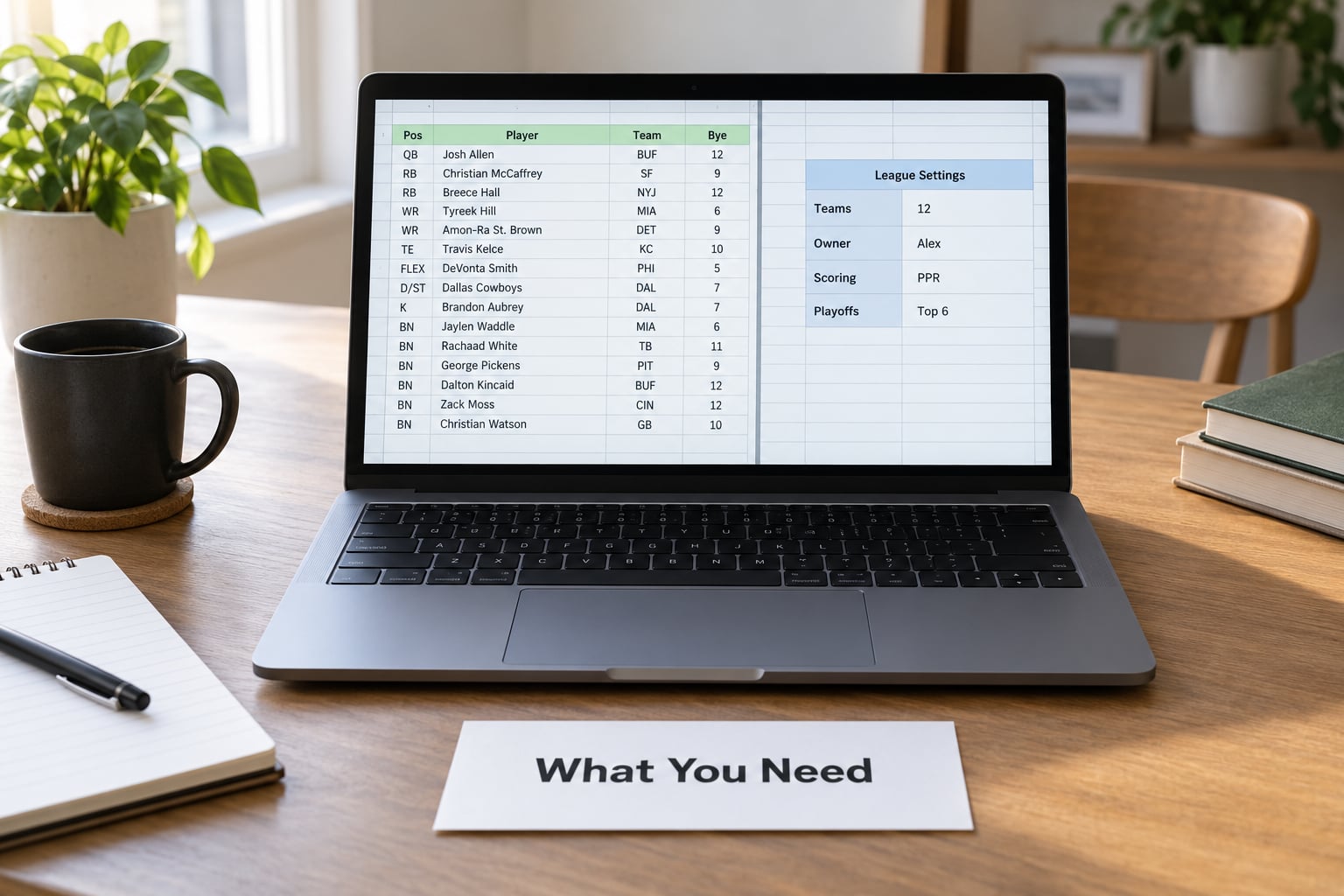
Importing and creating are two different jobs. Creating means starting an empty league with a clean slate and a fresh draft. Importing means reproducing something that already exists, settings and all. If your league has a history you care about, you are importing, even if the platform calls it something else.
Before you touch a single control, gather these seven things:
- The source file: an export, a spreadsheet, or screenshots of every roster and setting from the old league.
- Access to the destination platform, plus commissioner rights on the new league.
- Your league ID on both the old and new platform, and the platform-specific player ID system for each.
- Scoring settings: PPR or standard, bonus schemes, kicking, DST scoring, and any custom points.
- Roster details: position slots, flex rules, bench size, IR and taxi slots, and any roster limits.
- A written record of teams, owners, divisions, and the order the owners joined.
- Playoff rules: league type, playoff weeks, matchup structure, tiebreakers, and consolation rules.
That last one is the item commissioners skip and then regret. Tiebreakers are invisible until the season they decide a title.
| Platform | Same-platform rollover | Cross-platform import | What you rebuild yourself |
|---|---|---|---|
| ESPN | Renew the league and edit the next season | No official league-to-league importer | Rosters, owners, settings |
| Yahoo Fantasy | Renew league; rolling lists carry selections over | No official importer | Rosters, settings, divisions |
| Sleeper | Prior seasons sit under Previous Leagues in league settings | No official importer for other platforms | Full rebuild, including transaction history |
| Fantrax | Season rollover inside the league admin area | Manual entry or a third-party tool | Rosters, scoring, keepers |
| NFL.com | Commissioner rolls the league into a new season | Manual entry | Everything, including history |
| MyFantasyLeague | Rollover for most league types | Manual entry | Scoring and roster slots |
Platform interfaces shift often, so treat the labels below as current rather than permanent. If a menu item is missing, look for the same action under a nearby heading rather than assuming the feature is gone.
Step-by-Step
How to import a league from last season comes down to seven stages: export, choose a path, create the new league, map players, restore settings, verify, and archive. Stages four and six are where mistakes actually happen.
How to Import a League From Last Season on ESPN
ESPN has no one-click importer that moves an old league into a new one, so the realistic path is a manual rebuild inside a fresh custom league.
- Open the old league, go to League Settings, and note every tab: scoring, roster, schedule, waivers, and rules. Screenshot each one.
- Note your league ID. It appears in the league URL on web, and in the app under the league settings page.
- Create a new custom league in the web app. The create screen lets you set scoring, roster slots, size, and draft type up front, so build it to match the old league rather than fixing it later.
- Name each team to match the old league, then invite owners by email or invite code. Owners have to accept before their team counts as occupied.
- Enter each roster by searching the player name, then confirm the player ID shown on the player page matches the ID in your source file.
- Set scoring categories, bench size, IR slots, waiver type, and the playoff schedule in League Settings before inviting anyone else in.
- Run one simulated week and check the totals against last season’s numbers for the same players.
ESPN does let you import a draft list rather than a league, which is a different feature and often confused with this one. It fills your draft board, not your rosters or standings.
How to Import a League From Last Season on Yahoo Fantasy
Yahoo is the friendliest platform for this job because league creation and settings editing are both fully exposed in the browser.
- Export what you can from the old league: team lists, roster screenshots, and your settings pages.
- Create a new league and choose the scoring variant first, since Yahoo ties roster structure to scoring in places.
- Use the custom roster editor to set starters, bench, and IR slots to match last season exactly.
- Rename teams to the old names. Yahoo lets the commissioner edit team names directly in League Settings.
- Add owners through the invite flow and confirm each one has accepted.
- Enter rosters one team at a time. Verify the Yahoo player ID against your source list before moving on.
- Check divisibility: with twelve teams you need two playoff weeks, with ten you need three. Yahoo will not stop you from picking a bad number.
- Confirm commissioner settings, especially who can make trades and who can edit lineups during the season.
If your old league used a rolling list, selections carry into the new year under the same mechanism rather than being re-picked. That is Yahoo’s continual rolling list doing its job, and it is the one setting most worth getting right before you invite the league.
How to Import a League From Last Season on Sleeper
Sleeper stores past seasons but does not import them from other platforms, so a move to Sleeper is a rebuild with a good archive attached.
- In the app, open the league, then League settings, scroll to the bottom, and tap Previous Leagues. On web the same list sits in the left sidebar. This is how you view last season, not how you import it.
- Pull every roster and transaction you need from that archive before you do anything else.
- Create the new league in Sleeper and set divisions, roster positions, and scoring in the settings area.
- Add owners by email or invite code. They join as members, and you assign the roster to their team.
- Enter rosters using Sleeper’s player search. Sleeper players have their own IDs, so match on name and position, then confirm with the player’s page.
- Recreate divisions, keeper or dynasty rules, and the commissioner permissions you want.
- Compare the new league against your archive side by side, team by team.
Commissioners switching to Sleeper usually do it for the interface, not the history. One long-running home league stayed on ESPN for years for exactly that reason, per discussion in r/SleeperApp. Knowing what you are giving up before you move makes the decision easier.
Fantrax, NFL.com, and MyFantasyLeague Import Options
These three paths differ enough that a spreadsheet from one will not work on another, so treat each as its own project.
Fantrax handles most season rollovers inside the league admin area, and it has a deep settings tree worth exporting in full before you change anything. The trade is that Fantrax’s custom scoring options are broader than the others, so recreating them takes longer than recreating rosters.
NFL.com keeps the migration path simple. The commissioner rolls the league into a new season inside the league admin area, and owner names persist. Historical archives are shallower than the other platforms, so if you have years of past seasons there, capture them yourself before rolling forward.
MyFantasyLeague is built around rollovers for most league types, with settings split across several admin pages. Divisibility and tiebreakers are the fields people miss, and both are easy to change later once the season is live.
The one rule across all three: you cannot upload a file from another platform. Recreate settings field by field, and save a copy of what you changed.
Map Players, Teams, and League Settings Correctly
This stage is where a league quietly breaks, because a name that matches the wrong player looks fine until the first scoring week.
- Standardize on IDs, not names. Every platform uses a different player ID system, and common names collide. Two players share a last name in most seasons, and names get truncated in exports.
- Resolve duplicates and traded players by hand. Players who changed teams mid-season have two team labels and one identity, and a name-based import can create a duplicate roster slot.
- Map positions to the destination’s slot names, including flex, superflex, and bench slots, so a tight end doesn’t land in a running back slot.
- Reproduce team names, owners, and division membership in one pass, before you start on rosters.
- Transfer scoring, roster limits, waiver rules, tiebreakers, divisions, and playoff settings from your written record, not from memory.
Keepers and dynasty owners: carry selections over explicitly rather than re-picking. Note which team held which player, how many years were used, and the acquisition method. Rebuilding that from memory is where mistakes hide.
Verify the Imported League Before Going Live
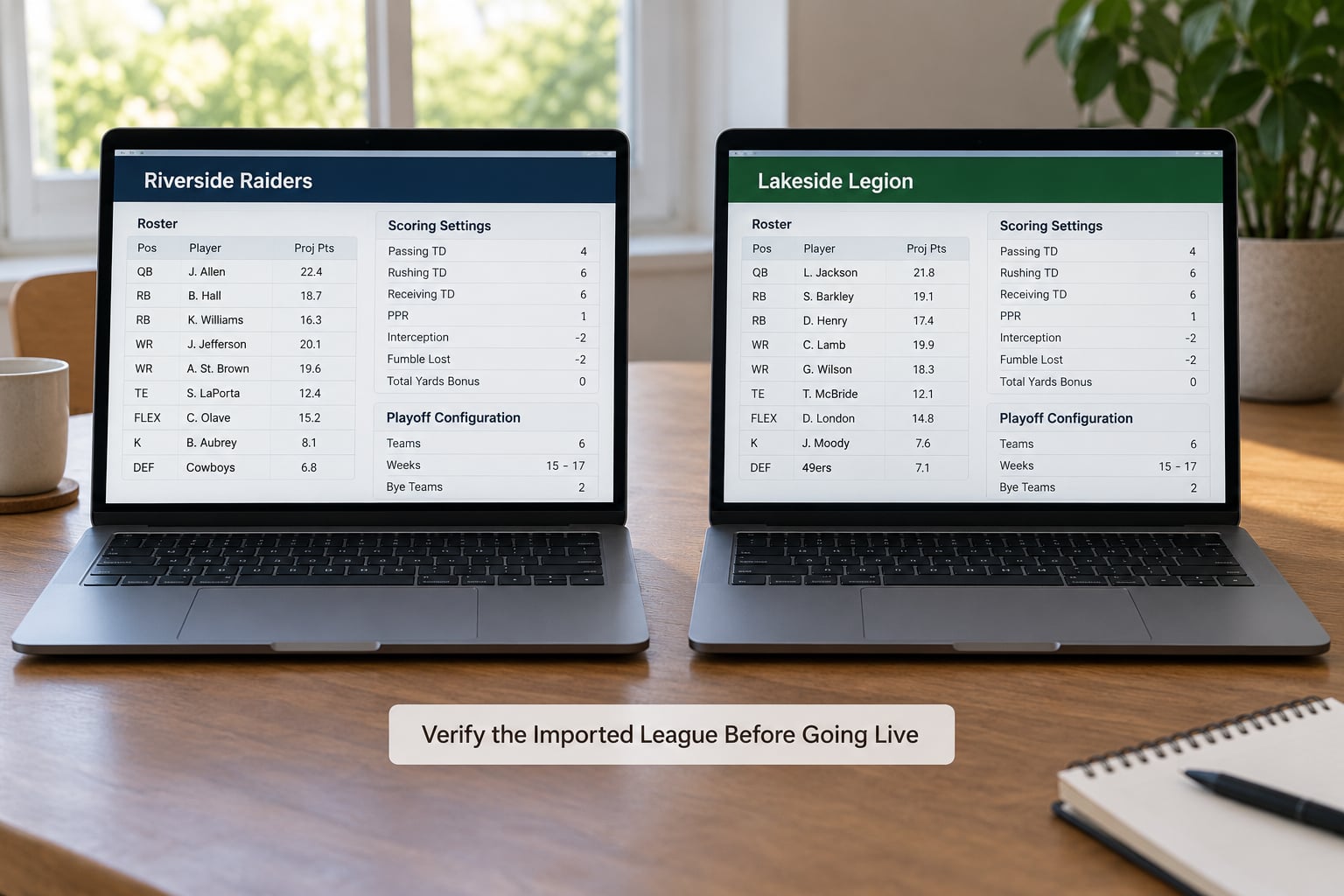
Treat the rebuild like a data entry job that needs a second pass. Five minutes of checking saves a season of arguments.
- Compare every team and every starter against the source file, one roster at a time, with the old season open beside the new league.
- Confirm the free agent pool is populated and that unowned players show correctly, since an empty pool blocks waivers entirely.
- Validate scoring values. Set a test scoring setting on a single position, then check that the math matches what you expect.
- Simulate or test one full week and compare totals against last season’s points for the same players.
- Check that every owner can actually see and edit their team from both the mobile and desktop apps.
- Export or archive a backup after every correction, so the next fix starts from a known state.
Common Mistakes
These six account for nearly every failed import I have seen, and each has a straightforward fix.
Using player names without IDs. The names match, the players don’t. Fix: resolve every player by platform ID before entering rosters, and verify on the player’s page rather than trusting the search result.
Creating a new league instead of importing. The result is a clean league with your team names and none of your history. Fix: before creating anything, confirm whether the platform has a renew or rollover option, and use it when the data needs to survive.
Overlooking the free agent pool. A league with an incomplete player pool looks fine until the first waiver run. Fix: check that unowned players appear in the free agent list before the draft or the first waiver window.
Losing transaction history. Trades, waiver claims, and budget totals are usually not part of an import. Fix: export or screenshot the transaction log from the old league first, and keep it as your archive. Nothing replaces it later.
Changing settings mid-migration. Tinkering with roster size or scoring while rosters are still being entered produces mismatches you cannot trace later. Fix: finish the data entry, then adjust settings in one deliberate pass.
Failing to test scoring. A custom points setup that is off by one on a category will not be obvious for weeks. Fix: run a test week and check the arithmetic on a handful of players by hand.
Two habits cover most of the rest. Export before you delete, without exception. And record the league ID for every league you touch, since it is the first thing any future migration will ask you for.
Frequently Asked Questions
Can I import a fantasy league from one platform to another?
Not directly. No major platform accepts a league file from a competitor, so switching means creating a new league on the destination and rebuilding it: rosters, team names, owners, divisions, scoring, and playoff settings. What you can carry across is your own exported file or screenshots. Budget a couple of hours for a ten-team league, and export the old league before you start.
Does importing a league bring over free agents and waiver wire players?
Usually not. The free agent pool is rebuilt from the destination platform’s own player database, and waiver wire ordering, FAAB budgets, and waiver priority generally reset or need re-entry. If those records matter to your league, export the transaction log and waiver order from the old league before you migrate, then set them manually on the new one.
Can I transfer a completed league and keep its transaction history?
A completed season’s history usually lives in the old platform’s archive and is not part of any import. On Sleeper you can still view past seasons under League settings, then Previous Leagues, which is an archive rather than a transfer. To preserve the record long term, export rosters, standings, and the transaction log into your own spreadsheet as soon as you have access.
What is the easiest way to recreate a custom fantasy league?
Screenshots plus a spreadsheet. Capture every settings page from the old league first, then build a new league with matching scoring and roster slots, name the teams, invite owners, and enter rosters by player ID. Entry is the slow part, not the setup. Entering teams by hand still gets you a working league with projections and scoring, which is what most commissioners need.
Should an imported league use the same roster and scoring settings as last season?
Match last season unless you are deliberately changing the format. Changing roster size and scoring rules in the same season as a migration makes every points total incomparable with your history, and your all-time standings stop meaning anything. If you do want a change, roll the league over first with identical settings, then adjust in a separate pass once the roster is verified.
Conclusion
Start by exporting and backing up the old league, including the transaction log that no import will bring for you. Then pick the destination platform, map every player to the destination’s own ID system, recreate the settings from your written record, and verify line by line before you tell the league the move is done. Get those five things right and the new season looks exactly like the old one, with better tools behind it.